One of the most common MSP help desk bottlenecks isn't a staffing problem — it's a process problem. Tickets get closed too fast, without proper review. Work that should go through quality control (QC) skips straight to Complete. Clients notice. SLAs technically pass but service quality quietly slips.
The fix is a Autotask workflow automation rule that enforces a QC step every single time — automatically, without relying on anyone to remember. This post walks you through exactly how to build it.
Why Quality Control Matters for MSP Help Desk Efficiency
Most MSPs think about MSP help desk efficiency in terms of speed: how fast tickets get assigned, how quickly techs respond, how many tickets get closed per day. But speed without quality creates a different kind of chaos — callbacks, re-opened tickets, frustrated clients who feel like issues weren't fully resolved.
A quality control workflow in Autotask closes that gap. It inserts a mandatory review step between "work completed" and "ticket closed," so your account managers or QC team can verify the resolution before the client ever sees a close notification. When combined with broader MSP workflow automation, it becomes a core part of a help desk that runs consistently — not just fast.
What This Autotask Workflow Rule Does
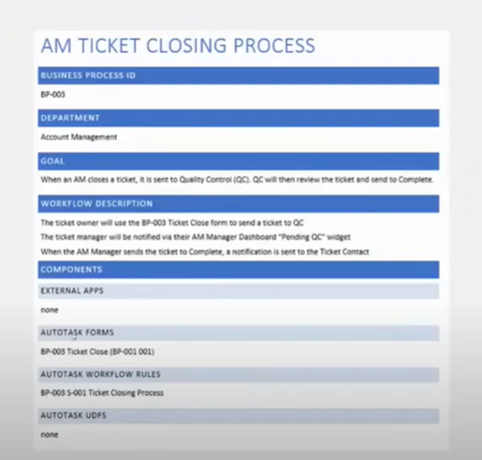
The business process goal is straightforward: when an Account Manager is ready to close a ticket, instead of moving it directly to Complete, it routes to a Quality Control queue first. Only after QC review and approval does it move to Complete status.
This is a simple but powerful example of ticket triage automation applied to the back end of the ticket lifecycle — not just the front. Most MSPs focus automation on intake and dispatch. The QC step is where the best ones close the loop.
Step 1 - Create the Ticket Close Form
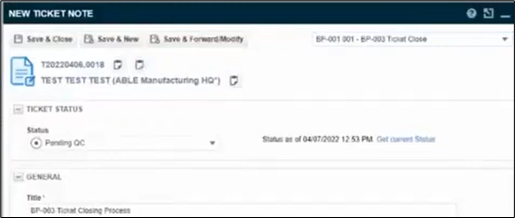
Forms are the backbone of this workflow. First, create a ticket note form called Ticket Close inside the Forms Template element in Autotask. This form standardizes what information gets captured every time a ticket is prepared for closing.
Use these settings when creating the form:
When a tech is ready to close a ticket, they'll add this form as a New Ticket Note using the Choose Template dropdown. It enforces consistency — every closing note follows the same structure, every time.
Step 2 - Build the Workflow Rule in Autotask
Now create the rule that enforces the QC step. In the New Workflow Rule window, follow these steps:
General section
- Add the Workflow Rule Name — example: "BP-001 S-001 Ticket Closing Process"
Events section
- Under Created/Edited, set Edited by → Anyone
Conditions section
- Set Queue Name → Equal to → Account Management
- Set Status → Changed to → Complete
- Set Status → Changed from → Pending QC
- Set up a no-reply notification so that if someone replies to the closed ticket, it bounces back appropriately
- Hit Save & Close
That's the rule. Simple to set up, significant in impact. Every ticket that moves through Account Management now requires a QC status change before it can reach Complete - no exceptions, no manual reminders needed.
Workflow Rules Work Across Your Entire MSP - Not Just the Help Desk
This QC example is built for the Account Management queue, but Autotask workflow automation isn't limited to helpdesk tickets. The same logic applies across every department in your MSP:
- Sales — trigger follow-up tasks when an opportunity changes stage
- Accounting — flag tickets missing billable time entries before they close
- Project management — enforce sign-off steps before project milestones are marked complete
- Onboarding — ensure every checklist item is completed before a new client goes live
Once you understand how workflow rules work, you start seeing process gaps everywhere — and you have the tool to close them.
Taking It Further: Automation Beyond Workflow Rules
Autotask workflow rules are a powerful first layer of MSP help desk automation. But they have limits — they're reactive (triggered by events) and they require you to build and maintain each rule manually.
The next level is adding intelligent automation on top of your PSA that handles automated ticket routing, skill-based dispatch, SLA-driven work queues, and real-time escalations — without you having to configure a rule for every scenario. That's what Giant Rocketship does for MSPs running Autotask and ConnectWise Manage.
Before building this QC workflow, make sure you've covered the fundamentals:
- Auto-assigning tickets in Autotask
- Defining a business process in Autotask
- Autotask workflow rules best practices
- From Reactive to Predictable: The MSP Operations Transformation
Ready to automate beyond workflow rules? Schedule a demo to see how Giant Rocketship layers intelligent automation on top of your Autotask setup, or start a free 30-day trial with no long-term contracts.